

EZCAD2 Software: A Practical Guide to Precision Laser Marking
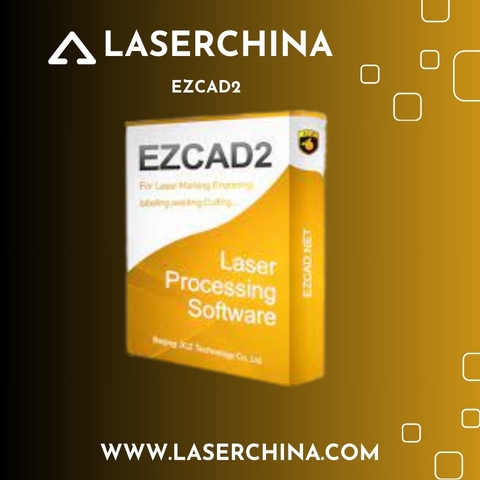
EZCAD2 is a widely used laser marking software designed to control compatible laser marking machines and create precise, professional markings on various materials. It is commonly used in industrial manufacturing, product identification, metal engraving, and personalized item production. With its practical design tools and machine control functions, the software helps operators manage marking jobs efficiently.
Whether you are marking serial numbers on metal components, engraving logos on stainless steel, or creating custom designs on promotional products, understanding the software can help you achieve consistent results.
What Is EZCAD2 Software?
EZCAD2 is a laser marking control program commonly used with compatible fiber laser, CO2 laser, and other supported marking systems, depending on the hardware configuration. It allows users to prepare artwork, configure marking parameters, and send jobs to the laser machine.
The software is frequently associated with EZCAD-compatible controllers, including certain JCZ control boards. Compatibility depends on the controller model, laser source, and installed hardware, so users should verify their machine specifications before installation.
Main Functions and Applications
1. Text and Number Marking
The software allows operators to add text, serial numbers, dates, and other identification information to marking projects. These functions are useful for manufacturers that need to label products, tools, and machine components with permanent identification details.
2. Logo and Graphic Engraving
Users can import supported graphic files and prepare logos, symbols, and other artwork for laser marking. This makes the software suitable for branding products, engraving business logos, and producing customized designs on compatible materials.
3. Barcode and QR Code Creation
Product tracking and identification are important in modern manufacturing. Compatible versions of the software support barcode and QR code marking workflows, helping businesses create machine-readable labels for inventory management and product traceability.
4. Marking Parameter Adjustment
Operators can configure settings such as marking speed, laser power, frequency, and other available parameters. The appropriate settings depend on the material, laser source, lens, and desired marking depth or appearance.
Testing on sample material is recommended before starting production, especially when working with valuable components or unfamiliar surfaces.
Materials and Industrial Uses
EZCAD2 is commonly used in applications involving stainless steel, aluminum, brass, and other suitable metals. With the correct laser system and settings, it can also support marking on selected plastics and coated materials.
Typical applications include:
-
Industrial part identification and serial number engraving.
-
Jewelry personalization and decorative marking.
-
Tool labeling and equipment identification.
-
Electronic component marking.
-
Logo engraving on promotional products.
-
QR codes and traceability markings for manufacturing.
Material compatibility depends on the laser wavelength and machine configuration. Not every laser source can produce the same results on every material.
How to Get Started
Getting started with EZCAD2 requires compatible hardware, the correct software version, and suitable machine settings.
Step 1: Check compatibility. Confirm the controller model and obtain the appropriate software package from your machine supplier or controller manufacturer.
Step 2: Install the software. Follow the supplier's installation instructions and install the correct drivers for your controller.
Step 3: Connect the marking machine. Check the controller connection and confirm that the machine is recognized correctly.
Step 4: Prepare your design. Create text, import a supported graphic, or prepare the required marking information.
Step 5: Configure marking parameters. Select appropriate settings based on the material and the desired marking result.
Step 6: Test before production. Use a sample piece to evaluate the marking quality and adjust the settings when necessary.
Always follow the machine manufacturer's safety instructions and use suitable laser protection.
EZCAD2 Installation and Troubleshooting
Installation problems can occur when the software version does not match the controller or when the required driver is missing. Before reinstalling the program, check the controller model, USB connection, driver status, and supplier documentation.
If the laser does not respond to marking commands, verify the machine connection and configuration before changing advanced settings. Keep a backup of working parameter files and machine configurations whenever possible.
For reliable operation, download the software only from a trusted machine supplier or the appropriate controller manufacturer's official channel. Avoid unofficial packages that may contain incorrect drivers or modified files.
Choosing the Right Laser Marking Software
When selecting EZCAD2, consider your machine's controller, operating system compatibility, marking requirements, and available technical support. Some newer laser marking systems may require a different software version or an alternative control platform.
Businesses planning to expand production should also consider workflow requirements, design compatibility, operator training, and access to replacement components. Confirming these details before purchasing a machine can help prevent installation and compatibility issues.
Final Thoughts
EZCAD2 remains a familiar option for many laser marking applications, particularly on compatible systems used for industrial engraving, product labeling, and customized designs. Learning its design tools, marking controls, and parameter settings can help operators produce accurate and repeatable results.
Before installing the software or purchasing a laser machine, verify hardware compatibility and obtain the correct version from a trusted source. With suitable equipment, proper training, and careful testing, businesses can develop an efficient laser marking workflow for a wide range of applications.
#EZCAD2 #LaserMarking #LaserEngraving #FiberLaser