


How Poor Ventilation Can Lead to Long-Term Laptop Damage
A laptop may look compact and simple from the outside, but it contains several components that generate considerable heat during everyday use. The processor, graphics hardware, storage system, battery, and motherboard all depend on an effective cooling system to maintain stable operating temperatures. When airflow becomes restricted, heat can accumulate inside the device and gradually affect performance and hardware reliability.
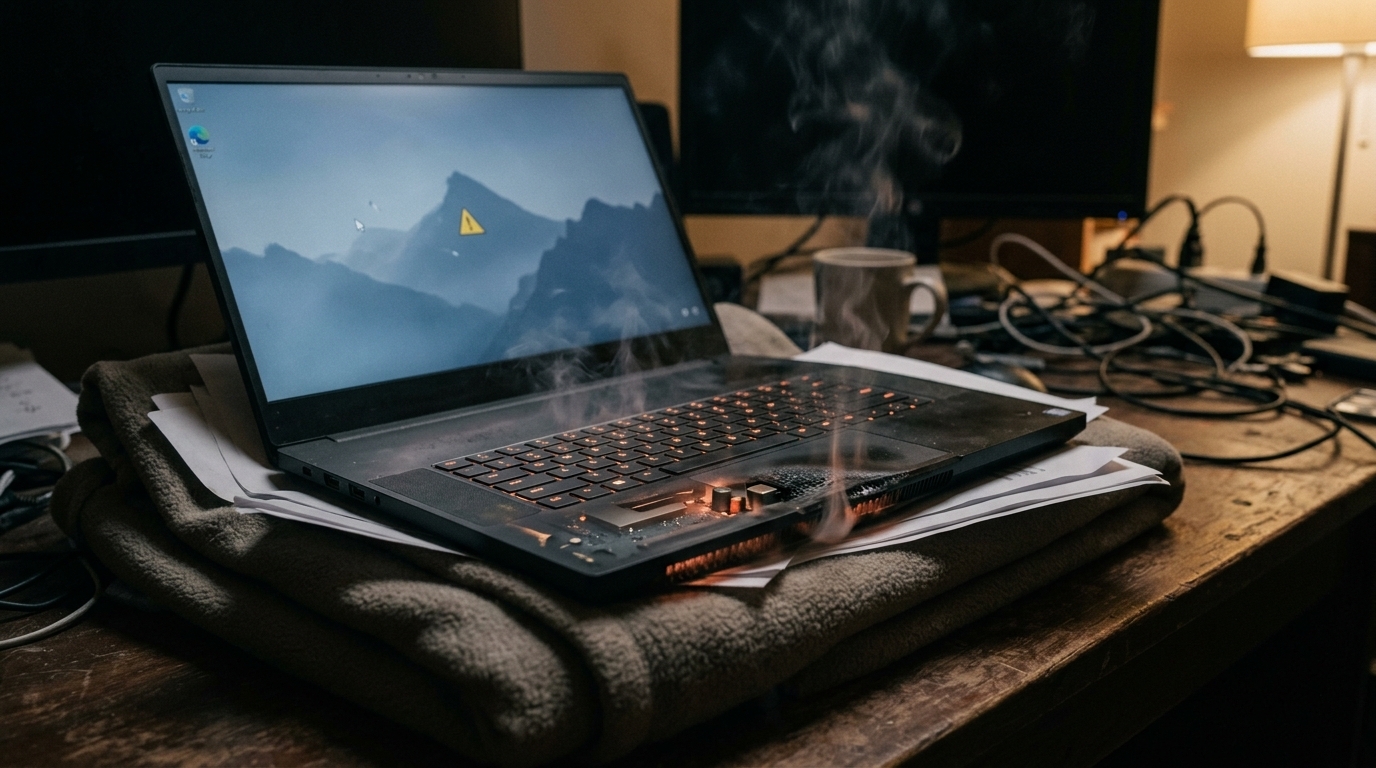
Poor ventilation is not always immediately obvious. A laptop may continue working while its fans run constantly, the casing becomes unusually warm, or applications begin slowing down. Over time, these symptoms can develop into more serious problems. iPC Repair Houston can help identify cooling and hardware concerns before they result in expensive repairs. If poor ventilation occurs alongside display damage, professional laptop screen repair Houston may also be required.
Why Laptop Ventilation Is So Important
Laptop ventilation allows cool air to enter the device while moving warm air away from heat-producing components. Fans, heat sinks, vents, and thermal interface materials work together to regulate internal temperatures.
When airflow is healthy, heat generated during normal activities can be transferred away efficiently. When airflow is restricted, temperatures can rise faster than the cooling system can manage.
Common causes of poor ventilation include:
- Dust accumulation
- Blocked air vents
- Soft surfaces
- Damaged cooling fans
- Excessive environmental temperatures
- Internal debris
- Poor thermal transfer
Maintaining good airflow is therefore an important part of laptop cooling maintenance.
Using a Laptop on Soft Surfaces
One of the simplest ways to restrict ventilation is using a laptop on a bed, blanket, pillow, or sofa. These surfaces can cover vents located underneath the laptop and prevent adequate airflow.
The result can be increased internal temperatures and higher fan activity. If this happens regularly, the cooling system may have to work harder for extended periods.
Whenever possible, use your laptop on a firm, level surface. A desk or suitable laptop stand can provide better clearance around ventilation openings and allow air to circulate more effectively.
Dust Can Gradually Block Airflow
Dust is another major contributor to laptop overheating. Cooling fans pull air through the system, and particles can gradually collect around the fan blades, heat sink, and exhaust openings.
As dust buildup increases, airflow becomes less efficient. The laptop may then operate at higher temperatures even when performing relatively simple tasks.
Signs of dust-related ventilation problems can include:
- Increasingly loud fans
- Excessive heat
- Slower performance
- Frequent thermal throttling
- Unexpected shutdowns
- Fans running continuously
Regular cleaning can help, but significant internal buildup may require professional service.
Excessive Heat Can Reduce Performance
When internal temperatures become too high, modern laptops often reduce processor performance to protect their hardware. This process is known as thermal throttling.
Although thermal throttling is a protective feature, it can make the laptop noticeably slower.
Users may experience:
- Delayed application responses
- Longer loading times
- Reduced gaming performance
- Slow multitasking
- Temporary freezes
- Performance drops during demanding tasks
If these symptoms occur repeatedly, the cooling system should be investigated instead of assuming that the laptop simply needs a software upgrade.
Long-Term Heat Can Stress Internal Components
Repeated exposure to excessive temperatures can place additional stress on laptop components. While a single hot operating session does not necessarily cause permanent damage, consistently poor cooling can affect long-term reliability.
Processors, graphics hardware, motherboard components, and other electronics operate within specific temperature ranges. Keeping temperatures under control can help reduce unnecessary thermal stress.
A laptop that frequently overheats may also become more prone to instability, crashes, and unexpected shutdowns.
Battery Health Can Be Affected
The battery is particularly sensitive to excessive heat. Repeated exposure to high temperatures can accelerate battery aging and reduce its ability to retain a charge.
A battery affected by prolonged heat may eventually show:
- Reduced operating time
- Faster battery drain
- Unexpected shutdowns
- Charging abnormalities
- Increased warmth
If a battery becomes swollen, the issue should be treated as a serious hardware concern. Continuing to use a physically damaged battery can create additional risks.
Cooling Fans May Wear Out Faster
Poor ventilation does not only affect the components being cooled. It can also place additional strain on the cooling fans themselves.
When internal temperatures remain high, fans may operate at elevated speeds for longer periods. Over time, mechanical fan components can wear out.
Warning signs of a failing fan include:
- Grinding sounds
- Clicking noises
- Unusual rattling
- Constant high-speed operation
- Fan failing to spin
- Laptop becoming hot despite fan activity
A failing fan should be addressed quickly because inadequate cooling can affect several other components.
Graphics Hardware Can Experience Thermal Stress
Graphics processors can generate substantial heat during gaming, video editing, 3D modeling, and other intensive workloads.
If ventilation is poor, the cooling system may struggle to remove this heat. This can lead to reduced graphics performance, application crashes, freezes, or unexpected shutdowns.
Users who regularly perform demanding tasks should pay particular attention to airflow and fan behavior.
Storage Performance May Also Be Affected
Storage devices can experience temperature-related performance issues. Modern SSDs may reduce their operating speed when temperatures become excessive, while other storage components can also become less reliable under unfavorable conditions.
Possible warning signs include:
- Slow file transfers
- Delayed application loading
- System freezes
- Unusual file-access delays
- Startup problems
If these symptoms continue after addressing cooling issues, the storage drive should be professionally evaluated.
Physical Damage Can Affect Ventilation
A laptop that has been dropped may develop cracks, dents, displaced components, or damaged fans that interfere with airflow. Even when the device continues to operate, its internal cooling system may no longer function correctly.
Physical accidents can also affect the display. Flickering, lines, cracks, black areas, or intermittent images may appear after an impact.
For users searching for laptop screen repair Houston, professional inspection can determine whether the problem is limited to the display or whether internal damage is also present.
Customers looking for screen repair Houston TX after a significant accident should consider having the complete device evaluated rather than focusing only on visible screen damage.
Liquid Damage Can Create Cooling Problems
Liquid exposure can affect fans, connectors, circuit boards, and other internal hardware. Residue left behind after a spill may interfere with electrical connections and contribute to corrosion.
Some liquid-related problems appear days or weeks after the initial incident. If liquid enters the laptop, shutting it down and seeking professional inspection is safer than repeatedly powering it on.
Warning Signs of Poor Ventilation
Laptop owners should pay attention to changes in normal behavior.
Important warning signs include:
- Laptop becoming unusually hot
- Fans running constantly
- Sudden performance reductions
- Frequent system crashes
- Unexpected shutdowns
- Heat-related error messages
- Loud or unusual fan noises
- Battery draining unusually quickly
One symptom does not automatically confirm a cooling problem, but several occurring together should not be ignored.
Ways to Improve Laptop Airflow
Simple habits can help maintain better ventilation:
- Use the laptop on a hard, flat surface.
- Keep ventilation openings unobstructed.
- Clean accessible dust regularly.
- Avoid using the device in extremely hot environments.
- Monitor unusual fan behavior.
- Avoid placing the laptop on bedding or thick fabric.
- Have persistent overheating professionally inspected.
These practices can reduce thermal stress and support longer hardware life.
When Professional Maintenance Is Necessary
If a laptop continues overheating despite good ventilation habits, the underlying cause may require professional attention. The issue could involve dust inside the cooling system, a damaged fan, degraded thermal material, blocked heat sinks, or another hardware problem.
At iPC Repair Houston, professional diagnostics can help determine why a laptop is overheating and whether cleaning, repair, or component replacement is appropriate.
Addressing the cause early can help prevent excessive heat from affecting additional hardware.
Conclusion
Poor ventilation can gradually turn a minor cooling problem into a serious laptop hardware concern. Blocked vents, dust accumulation, soft surfaces, damaged fans, and excessive environmental heat can prevent the cooling system from removing heat efficiently. Over time, repeated overheating may contribute to reduced performance, battery deterioration, fan failure, storage problems, system instability, and premature hardware wear.
Good airflow should therefore be treated as an important part of routine laptop care. If overheating occurs alongside physical damage, laptop screen repair Houston or screen repair Houston TX services may be needed along with a complete hardware inspection. With professional assistance from iPC Repair Houston and consistent laptop cooling maintenance, users can identify ventilation problems earlier, reduce thermal stress, and help extend the reliable operating life of their laptops.